Built for the next big online magazine, WordPress theme Aparatus is available for free!
Thinking of a sharp, clean magazine layout for your website – then Aparatus is for you. Aparatus is a two column design complete with all the bells and whistles of a high content news website. A large featured carousel slider sits in the homepage that cycles through your latest posts. Post thumbnails for articles, photo galleries, videos, threaded comments, pagination, custom menus – all of these are built in Aparatus.
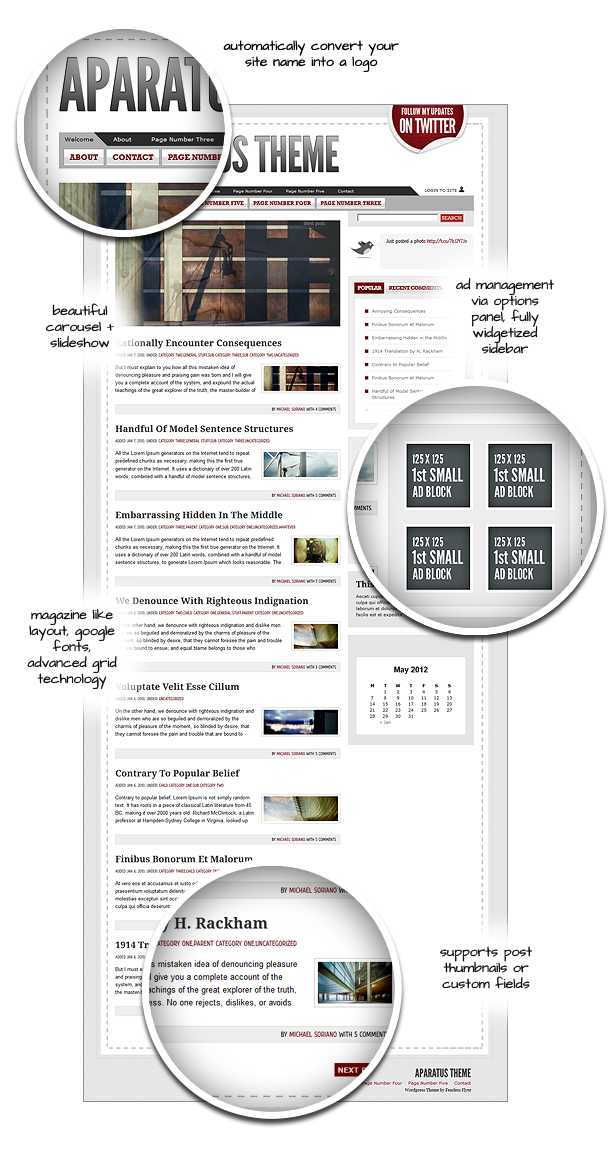
Some Theme Features
The theme utilizes Cufon – but only for select areas of the theme such as the Logo and the footer. The logo now has an etched and gradient look – which compliments the header quite well. Google fonts is also used for the post and comments headings. A few CSS 3 code is also used to improve the presentation of the text a little bit more.
A new post thumbnail handling for the feature images – so it will work with custom fields. The feature image also appears in the single post page – something many users have requested for.
The theme now supports the new WordPress menu system. You can now customize the menu with drag and drop abilities.
Theme options is also integrated. Advertising and Twitter handles are controlled from this section.
How to Use:
Installing the theme is just like any other WordPress theme. Simply go to the “Appearance” > “Install Themes” section in your admin panel. Click the “Upload” link – browse to the theme .zip file and “Install Now“.
Adding Post Thumbnails to your Posts:
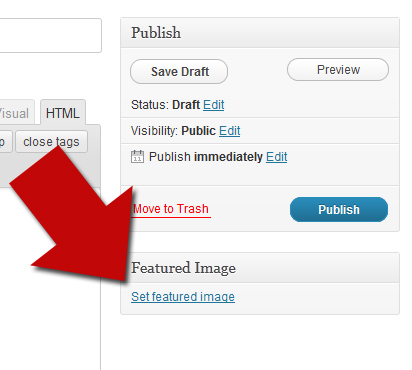
To add images to your posts you can use the Post Thumbnail feature of WordPress. Simply go to the post in “Edit” mode. On the right side of the page – click on “Set Featured Image“:
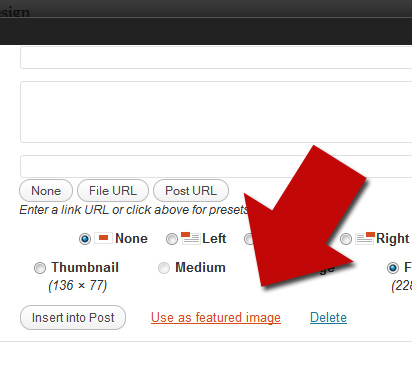
This will trigger the image uploader. Upload your image and as soon as that’s done, click the “Use as Featured Image” link:
Note that you should keep the file sizes to a smaller size. The resizing script has a maximum size limit.
How to Use the Slideshow:
The slideshow automatically pulls your most recent posts (5 maximum). You can change this to pull from a specific category by going to “Appearance” > “Aparatus Options” and putting the category slug in the field: “Category Name for the Content Slider“. You can also take out the slideshow or choose to not automatically slide – by checking the appropriate boxes in the theme options.

Also, if you see the slider with the “Oops…Looks like” message (shown below) – that means you haven’t assigned a post thumbnail to your post. Read the section above called “Adding Post Thumbnails to your Posts“.

How to insert a Photo Gallery:
Adding a photo gallery into Aparatus is as easy as pie. Simply go to the post / page you want in “Edit” mode and click on the image uploader. Navigate to your local directory and highlight the images you want and click “Open“.
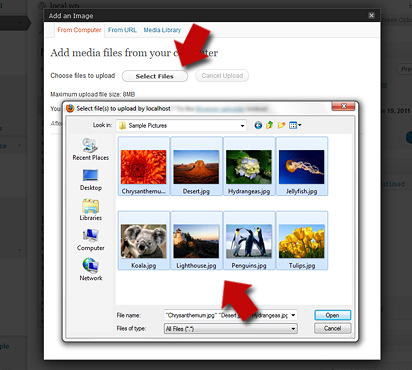
As soon as the images upload, click on “Save Changes” and additional settings will show. Select your options and click “Insert Gallery“.
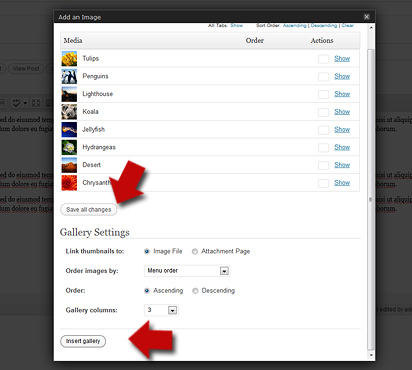
Update your post / page and preview it. You should see your gallery in place.

How to Customize the Navigation Menu:
Go to “Appearance” > “Menus” and start by creating a new menu. Enter a menu name and click “Create“.
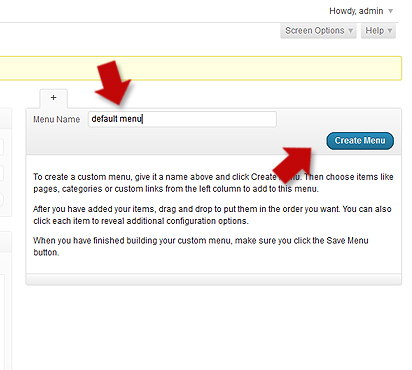
This will create a blank menu panel in the right side of the page. The idea is to select categories, pages or custom links from the left side, click the “Add to Menu” button – and it will appear on the menu panel in the right. In this panel, you can drag and drop the links so you can design the menu hierarchy. Links that are staggered underneath become the drop down links from the respective parent – you get the drift.
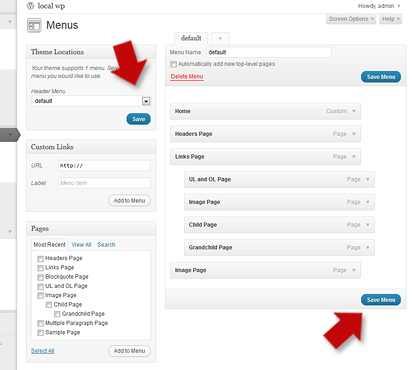
Once the menu is done – hit “Save Menu” and in the top most left column box called “Theme Locations“, select the menu you just created from the drop down called “Header Menu”. Click “Save” and view your website. You menu should now be in place.

Switching Stylesheets
Aparatus comes with 4 different color styles – also known as stylesheets. Go to “Appearance” > “Aparatus Options” and in the top most section is a drop down called “Style Sheet”. Select Maroon, Black, Blue or Green and “Save Changes“.

Adding the Twitter Badge and Latest Tweet:
Still in the theme options, right underneath the Style Sheet drop down, is the Twitter account field. Enter your Twitter user name in this field.

Save your changes and view your website. You should see a nice Twitter Badge in the Header – and your latest Tweet in the sidebar area.

Advertising Blocks:
You can ad advertising blocks in the sidebar area right in the theme options. You can do 1 large 300 x 250, and 4 small 125 x 125 squares. Go to the theme options page – and see the “Advertising Blocks” area. Enter the image source of the ad (where the image is coming from), and the destination (where the link goes when the image is clicked).

Save your changes and view your site. You should see the ad blocks in the sidebar nicely lined up:

How to Add an Image Logo
The theme is not equipped with an automatic image logo placement feature. But many have asked me how to replace the existing text header into an image instead. *Note that I will be working on this feature soon. For now, here is a workaround:
Upload your image logo using the media upload (Go to “Media” > “Add New” > “Select Files” and find your image, then upload. Grab the File URL for your image. Open stlye.css (or whichever style sheet you are using) – go to “Appearance” > “Editor” > style.css. Look for:
|
1 |
a#logo |
Inside the curly braces, enter the code below:
|
1 2 |
background:url('ENTERTHEURLFORYOURIMAGEHERE'); text-indent: -9999px; |
Save the file. Now open header.php (Still in the Editor section) – look for
|
1 2 3 4 |
Cufon.replace('a#logo', { color: '-linear-gradient(#cccccc, #000000)', textShadow: '-1px -1px black ' }); |
And delete it. View your website with the new header logo. Note that you may need to adjust some CSS positioning or padding to accommodate your new logo.
Frequently Asked Questions:
I’ve gathered a several most asked questions in regards to Aparatus. Read below to see if your question is one of them.
Modify the Twitter Badge Image
Many want to modify the large Twitter Badge in the header. Please note that the font I’ve used in this badge is called – League Gothic, and you need to download that in your Fonts folder to twiddle the .psd file.
Slideshow is not showing images
If you’re using custom fields – make sure you have GD library installed. You also have to make sure that the cache folder inside scripts (themes/aparatus/scripts/cache) is fully writeable. In addition, you need to enter at least a couple of posts to kick start the slideshow.
How To make posts in the slideshow appear below the slideshow
By default posts inside the slideshow does not duplicate underneath – where the rest of the post are. Many like it this way – but some have asked how to make them show below as well. To do this look for this line of code inside gallery.php and delete it:
|
1 |
$saved_ids[] = get_the_ID(); |
How to fill the Author Box Information
The “About the Author” box right in the single posts page grabs information from your profile. Go to “Users” > “Your Profile”, under Biographical Info – enter your stuff there.
The Header Text takes too long to convert into the logo
Sometimes Cufon takes a bit of time to do its thing. Aparatus uses this to use your site name and automatically convert it into a decent looking logo. But sometimes – due to client browser constraints, it performs poorly.

For this issue it would probably best to use an image for your logo. If you really like how it looks with Cufon – just take a screenshot and convert the image into a jpeg and replace it inside the header.php.
Conclusion:
Additional documentation can be found from this series of posts. You can download the theme from this link. Don’t forget to leave your comments below.
You might also like:


Write for us!
We welcome designers and developers who wish to contribute to Fearless flyer. Learn more about our submission guidelines. This site is growing fast and your article will give you great exposure. Contact us about your article today!

Pingback: WordPress Themes 2011 White Edition | Devlounge()
Pingback: 100 Free Premium Wordpress Theme (2011) | RickyChewDotCom()
Pingback: WordPress Themes | Guys IT()